I was hanging around on the Web trying to find anything interesting and found that thing that stopped me and made me say, WOW! Am not kidding, this is really an operating system built upon the Silverlight. This mini-OS looks like Windows 7 and has lots of GREAT features like a file explorer, an Internet surfer, a video player, a RSS reader, a Twitter client, and more…
Starting just after MIX11 keynote for 24 hours only a full Silverlight 5 course available for FREE from Shawn Wildermuth and PluralSight. The course covers the new features of Silverlight 5, starting from XAML enhancements and the new 3D API, and ending with the security changes of Silverlight.
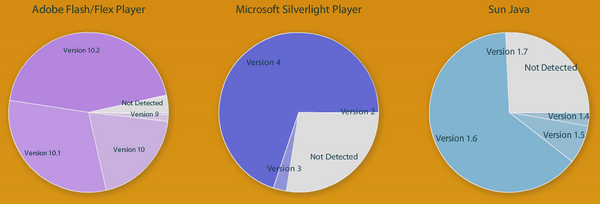
[April 2011] According to RIA Stats (http://riastats.com), 97% of total internet-connected machines run Adobe Flash, 74% run Sun Java, and 73% run Microsoft Silverlight. One can say that this is a great success for Microsoft as Silverlight has just been rolled out in April 2007, however, as Silverlight is largely supported by Microsoft and it’s automatically installed for the user by Windows Update we can say that the numbers for Silverlight are not accurate enough.
In the previous lesson we talked about COM automation support introduced in Silverlight 4 and we said that COM automation is available only for Silverlight OOB (Out-of-Browser) applications that have Elevated Trust, and that’s one of the security restrictions imposed by Silverlight.
Today, we’re going to talk about COM automation in more details and give few Silverlight examples that make use of this great feature.
Concepts
Finding COM Components
COM components expose their interfaces and classes via Windows Registry. COM classes exposed to public available in this machine are registered in the Registry at HKCRCLSID (which is a repository for all COM classes registered in this machine.) Because the machine may have thousands of COM components installed, every COM class is identified with a GUID (Globally Unique Identifier.) This GUID is very long and difficult to remember (it’s something like {xxxxxxxx-xxxx-xxxx-xxxx-xxxxxxxxxxxx}) so COM classes are using another way to identify themselves; that is the ProgID (Programmatic ID.)
ProgID for a COM class is a simple and clear string that identifies that class and represents it. For example, Microsoft Word exposes its functionalities through a COM class that you can reach it using the ProgID Word.Application. So, instead of the GUID of a class, you simply refer to it using its simple and easy-to-remember ProgID.
Then, how to find the right COM component? Or how to know if a COM component exposes a certain functionality that I need? Google it, that’s the only way! If you are looking for a COM component that does something you need just google it. And always have the COM component in your right hand, and have its documentation in the other. And don’t miss a chance to ask MSDN for help.
Accessing the COM Component
Now you have the COM component and know what to do with it. The next step is to create a new instance from the COM class using its ProgID. This is can be done using the AutomationFactory class found in the namespace System.Runtime.InteropServices.Automation (exist in System.Windows.dll.) This class exposes a few functions and only one property. The only property is IsAvailable that returns whether or not COM is supported by the operating system (COM is supported only in Windows.) Of the few functions AutomationFactory supports, we care about only CreateObject() that takes the ProgID as an input and returns the created object.
COM and Late Binding
When you assign an object to a variable that assignment can be made as early-binding or late-binding.
Early-binding is that what you make every day and all the time. By default, object assignment is made as early-binding, means that you create a variable of specific type and bind that object to that variable. Then, the compiler always knows the type of object assigned and the members (methods, properties, etc.) it supports and that allows him to do some checks, optimizations, and perform some memory allocations before application start.
In addition, early-bound variables can be thought as strongly-typed objects, means that you can check for their exposed members, use some IDE features like Intellisense and Object Explorer, and also receive compiler errors when you try to make calls to members that don’t exist (for instance.)
Late-binding on the other hand is made at runtime, means that the compiler doesn’t have enough information about the type at compile time. That means that no type checks, no method lookups or Intellisense, no verifications, no optimizations, and also no compilation errors from the late-bound object.
Is there any benefit from late-binding? Does it have anything to do with COM? Actually, it’s not as ugly as you think, it has lots of benefits and it also the core of COM automation in Silverlight (and .NET 4.0 too.)
Late-binding allows you not to embed COM types and interfaces in your .NET assembly, and that would help reduce your application size dramatically, and also protects you from versioning fails and falling in the DLL Hell.
Worth mentioning that late-binding was introduced in .NET 4.0 via the dynamic keyword and DLR (Dynamic Language Runtime) libraries. Before .NET 4.0, late-binding was supported only via reflection. Regarding Silverlight, late-binding was introduced in version 4 supporting easier COM automation and HTML DOM.
After all, to create a COM object in Silverlight you first ensure that Microsoft.CSharp.dll and Microsoft.Core.dll are referenced to your project. After that, you can call AutomationFactory.CreateObject() and assign the returned object to a dynamic variable and start coding with it.
Preparing Your Project
Now, let’s get to work. We’ll now prepare a Silverlight application for communication with COM components. Remember that this process requires a Silverlight 4 application running as OOB and having the elevated trust.
Start with a Silverlight project and ensure that you have selected version 4 from the New Application dialog. (The application will run as OOB, so you can safely uncheck the web application hosting option.)
Figure 1 - Creating New Silverlight Application
After creating the project, open project properties and from the bottom of the Silverlight tab check the option “Enabling running application out of browser” (check figure 2.)
Figure 2 - Configuring Silverlight to run as OOB
Then click Out-of-Browser Settings button and from the bottom of this dialog too check the “Require elevated trust when running” option (check figure 3.)
Figure 3 - Enabling Elevated Trust
Now click OK and close project properties and save the project.
Next, add support for dynamic variables and late-binding feature to the project by referencing Microsoft.CSharp.dll (and System.Core.dll too if it’s not currently referenced) in the project.
Figure 4 - Adding Reference to Microsoft.CSharp.dll
OOB Characteristics
First of all, you can launch your OOB application by clicking Run or pressing F5 (figure 5.)
Figure 5 - Running OOB Application
OOB applications can also run in a web page (by default, you’ll redirect the user to a web page where he can install the application to his PC.) Try browsing to TestPage.html (in Bin<debug|release>, check figure 6) or referencing the project in web application Keep in mind that COM support is not available for OOB applications running in the web.
Figure 6 - OOB Applications from the Web
When running OOB application from a web page the user can right click the application and chooses to install it on his machine (figure 7.) This behavior is the default, but you can disable it from the Out-of-Browser Settings dialog (check figure 3.)
Figure 7 - Installing Silverlight OOB App
When trying to install an OOB application that requires elevated trust the user may accept a security warning before the installation goes on (figure 8.)
Figure 8 - Installing Elevated Trust App
You can also order the application to launch the installation process via Application.Install(), but this requires to be called in response to a user-initiated action (e.g. clicking a button.)
Another great feature of ApplicationClass is IsRunnignOutOfBrowser that returns whether the application is running OOB.
Sample 1: Talking Apps
Our first example is an application that makes use of the speech API and speech COM library, sapi.dll, to read a textual input from the user. The code uses the SAPI.SpVoice class that has the Speak() function that we’ll make use of.
First, design a window that has an input text box and a button to read the text. You might get help from the following XAML:
The application might look like this:
Figure 9 - The Talking App
Now, start coding the Click event of the button:
Remember to include a using statement for System.Runtime.InteropServices.Automation.
private void Button_Click(object sender, RoutedEventArgs e)
{
    if (!Application.Current.IsRunningOutOfBrowser)
    {
        MessageBox.Show("This application cannot be run from the browser.");
        return;
    }
    if (!AutomationFactory.IsAvailable)
    {
        MessageBox.Show("Your operating system does not support COM.");
        return;
    }

    try
    {
        using (dynamic obj = AutomationFactory.CreateObject("SAPI.SpVoice"))
        {
            obj.Speak(inputTextBox.Text);
        }
    }
    catch (Exception ex)
    {
        MessageBox.Show("An error has occurred.n" + ex.Message);
    }
}
In the previous code we have checked first for whether the application is running as OOB or not (using Application.IsRunningOutOfBrowser property.) After that, we made a second check for ensuring that COM automation is supported by the operating system (i.e. the user must be working on Windows.)
Then, we have created our first COM object using AutomationFactory.CreateObject() function specifying the class ProgID which is SAPI.SpVoice. As you see, we have assigned the created object to a dynamic variable and we have also encapsulated the object in a using statement to ensure that system resources get released quickly as soon as we finish working with the object.
You can try an updated version and download it from here:
We won’t dig into Microsoft Office SDK or even one of its products, we don’t have much space here, and it also requires a punch of articles in its own. Instead, we’ll have just a few examples and two samples that clear up the ambiguities of COM automation. More help can be found in the documentation of the Office programming model available in MSDN.
Word Automation
Microsoft Word exposes its programming model via COM components that you can reach its main Application object via the ProgID Word.Application. This model allows you to almost do everything programmatically from creating and opening documents to saving and printing them, even running macros and recording them is available through this model.
The following code creates a Word document and writes some text to it:
Like all other Microsoft Office products, Microsoft Outlook can be managed completely by the code using its programming model exposed through the ProgID Outlook.Application. The following code sends an email using Outlook (thanks to Jeff Prosise for providing the code):
using (dynamic app = AutomationFactory.CreateObject("Outlook.Application"))
{
    dynamic mail = app.CreateItem(0);
    mail.Recipients.Add("");
    mail.Subject = "Hello, World!";
    mail.Body = "Silverlight COM Automation is so cool ;)";
    mail.Save();
    mail.Send();
}
The last sample here makes use of the most powerful file managing COM component exposed through the ProgID Scripting.FileSystemObject. This class gives your application the power to do almost everything on file system even if your Silverlight application lonely (without COM support) that runs with elevated trust don’t have such those privileges (remember what we have said about COM automation? It’s the ultimate power for Silverlight.)
The next is an example of a code that creates a text file on drive C: and writes some text to it:
In April 2010 Silverlight 4 was released to the world with one of its great features ever, COM-automation support, that allows you to create cutting-edge applications that do everything you can imagine.
What COM is
COM (Common Object Model) is a Microsoft technology introduced in 1993 and currently used by many programming languages (including C++ and VB6) for developing and building software components. Simply, you can think about COM as the counterpart for .NET assemblies in languages like C++ and VB6, .NET assemblies hold program objects and so do COM components, there’re many differences of course and one of them is that COM components are much more capable than .NET assemblies and that what makes accessing them is a great improvement to Silverlight.
Today there’s much COM components available, Microsoft Office is an example of a COM-based SDK, lots of Windows features are introduced through COM interfaces (Text-to-Speech is a good example,) and lots of 3rd party software (e.g. Adobe Reader) expose their functionalities through COM-based interfaces. Thus, you can’t leave COM automation behind if you’re willing to create cutting-edge Silverlight applications that do almost everything.
Silverlight OOB Applications
Another great improvement to Silverlight over Adobe Flash is its support for installing and running offline as a desktop application with no network presence. Those Silverlight desktop clients are described as OOB (Out-of-Browser) applications and they have been introduced in Silverlight 3 and extended their functionalities in version 4.
OOB applications are sophisticated desktop clients that can run on any platform with no such code changes required. WPF applications are much capable of course but they support only the Windows platform.
Notice that COM is a Microsoft technology that won’t run in a non-Windows machine.
Silverlight 4 and COM
Starting from version 4, you have the ability to call COM-components through your Silverlight application with a small amount of simple and clear code. But don’t expect much, you still constrained by two security restrictions:
Your application needs to be running OOB.
Your application must have the Elevated Trust.
Both requirements are easy as two mouse clicks; you simply set application requirements in project properties.
Programmatically, to start communicating with a COM component you make use of the AutomationFactory class found in namespace System.Runtime.InteropServices.Automation (exist in the main System.Windows.dll.) Combined the AutomationFactory class with dynamic coding (and the dynamic keyword) you can create your COM objects in Silverlight and play with it.
In the next few lessons we’ll discuss Silverlight COM automation in details and see it in action though many useful examples that will move your application to infinity. Enjoy!
هذه المقالة متوفرة أيضا باللغة العربية، اقرأها هنا.
Overview
Stephen Hawking is one of the most famous people using speech synthesis to communicate
In this article we are going to explore the Speech API library that’s part of the TTS SDK that helps you reading text and speaking it. We’re going to see how to do it programmatically using C# and VB.NET and how to make use of LINQ to make it more interesting. The last part of this article talks about…… won’t tell you more, let’s see!
Introduction
The Speech API library that we are going to use today is represented by the file sapi.dll which’s located in %windir%System32SpeechCommon. This library is not part of the .NET BCL and it’s not even a .NET library, so we’ll use Interoperability to communicate with it (don’t worry, using Visual Studio it’s just a matter of adding a reference to the application.)
Implementation
In this example, we are going to create a Console application that reads text from the user and speaks it. To complete this example, follow these steps:
As an example, we’ll create a simple application that reads user inputs and speaks it. Follow these steps:
Create a new Console application.
Add a reference to the Microsoft Speech Object Library (see figure 1.)
Figure 1 - Adding Reference to SpeechLib Library
Write the following code and run your application:
// C#

using SpeechLib;

static void Main()
{
    Console.WriteLine("Enter the text to read:");
    string txt = Console.ReadLine();
    Speak(txt);
}

static void Speak(string text)
{
    SpVoice voice = new SpVoiceClass();
    voice.Speak(text, SpeechVoiceSpeakFlags.SVSFDefault);
}
' VB.NET

Imports SpeechLib

Sub Main()
    Console.WriteLine("Enter the text to read:")
    Dim txt As String = Console.ReadLine()
    Speak(txt)
End Sub

Sub Speak(ByVal text As String)
    Dim voice As New SpVoiceClass()
    voice.Speak(text, SpeechVoiceSpeakFlags.SVSFDefault)
End Sub

If you are using Visual Studio 2010 and .NET 4.0 and the application failed to run because of Interop problems, try disabling Interop Type Embedding feature from the properties on the reference SpeechLib.dll.

Building Talking Strings
Next, we’ll make small modifications to the code above to provide an easy way to speak a given System.String. We’ll make use of the Extension Methods feature of LINQ to add the Speak() method created earlier to the System.String. Try the following code:
// C#

using SpeechLib;

static void Main()
{
    Console.WriteLine("Enter the text to read:");
    string txt = Console.ReadLine();
    txt.Speak();
}

static void Speak(this string text)
{
    SpVoice voice = new SpVoiceClass();
    voice.Speak(text, SpeechVoiceSpeakFlags.SVSFDefault);
}
' VB.NET

Imports SpeechLib
Imports System.Runtime.CompilerServices

Sub Main()
    Console.WriteLine("Enter the text to read:")
    Dim txt As String = Console.ReadLine()
    txt.Speak()
End Sub

<Extension()> _
Sub Speak(ByVal text As String)
    Dim voice As New SpVoiceClass()
    voice.Speak(text, SpeechVoiceSpeakFlags.SVSFDefault)
End Sub
I Love YOU ♥
Let’s make it more interesting. We are going to code a VBScript file that says “I Love YOU” when you call it. To complete this example, these steps:

Open Notepad.
Write the following code:
CreateObject("SAPI.SpVoice").Speak "I love YOU!"
Of course, CreateObject() is used to create a new instance of an object resides in a given library. SAPI is the name of the Speech API library stored in Windows Registry. SpVoice is the class name.
Save the file as ‘love.vbs’ (you can use any name you like, just preserve the vbs extension.)
Now open the file and listen, who is telling that he loves you!


Microsoft Speech API has many voices; two of them are Microsoft Sam (male), the default for Windows XP and Windows 2000, and Microsoft Ann (female), the default for Windows Vista and Windows 7. Read more about Microsoft TTS voices here.
Thanks to our friend, Mohamed Gafar, for providing the VBScript.
هذه المقالة متوفرة أيضا باللغة العربية، اقرأها هنا.
Problem
The problem arises when you install IIS after installing ASP.NET. If you do this, IIS will configure itself for the ASP.NET version that ships with your Windows edition that might be an older version (e.g. version 2.0) and you won’t be able to run any web application built using a later version of ASP.NET.
Solution
The solution is simply to reconfigure ASP.NET for IIS. You don’t need to reinstall ASP.NET or the .NET Framework; you just need to reapply ASP.NET configuration to the IIS.
When you open the IIS Manager, you can check Application Pools and see which version of ASP.NET is currently configured. Here, we have IIS installed after ASP.NET, so the IIS is configured for version 2.0 (as you can see in figure 1.)
To solve this, we’ll get help from the aspnet_regiis.exe tool that will reconfigure IIS to the version of ASP.NET you choose. This tool is located in %windir%Microsoft.NETFrameworkv<version> (replace <version> with the version of .NET Framework you like to use.)
Let’s get this done. Open the Command Prompt in administrative mode (Start->Cmd->Ctrl+Shift+Enter) and go to the .NET Framework directory mentioned before.
Now, run the ASP.NET IIS Registration tool using the following command:
aspnet_regiis.exe -i
When the tool finishes its job, you’ll get a message inform you that everything was completed successfully.
Now go to IIS Manager again and check the Application Pools. You can now find that IIS is configured for ASP.NET 4.0 which is installed on that machine (see figure 2.)
هذه المقالة متوفرة أيضا باللغة العربية، اقرأها هنا.
Introduction
When you install Windows, it doesn’t automatically install IIS for you. Instead, you have to install it manually. If you have downloaded a new version of IIS from IIS website, you can use the setup file to install IIS on your machine. If you prefer the version of IIS that ships with your Windows edition, you can install it using Windows Components installer, and that what we are going to do next.
IIS on Windows XP
To install IIS on Windows XP follow those steps:
Go to Control Panel -> Add or Remove Programs -> Add/Remove Windows Components.
Go down in the list and check Internet Information Services (see figure 1.)
You can also click Details to choose additional services and functionalities to install (e.g. SMTP service.)
Click Next and provide your Windows CD or Windows installation files folder to continue.
Figure 1 - Installing IIS on Windows XP
Now you can go to Control Panel -> Administrative Tools and run IIS from there. You can also browse to http://localhost and see your new homepage (enjoy!)
IIS on Windows Vista and Windows 7
Installing IIS on Windows Vista/7 is very similar, just follow those steps:
Go to Control Panel -> Programs and Features -> Turn Windows Features on or off.
In the Windows Features dialog (see figure 2,) check Internet Information Services node.
You can also select any additional services to install from the child nodes (e.g. FTP services.)
Click OK to complete the installation. A system reboot might be required.
Figure 2 - Installing IIS on Windows Vista and Windows 7
Now go to Control Panel -> Administrative Tools to run the IIS. You can also go to http://localhost to see your new homepage.
Running IIS
Personally, I don’t like running IIS from Administrative Tools. I like to use the Run command to run everything on my PC and that’s, on my opinion, 3 times faster than everything else (of course when using the keyboard not the mouse.)
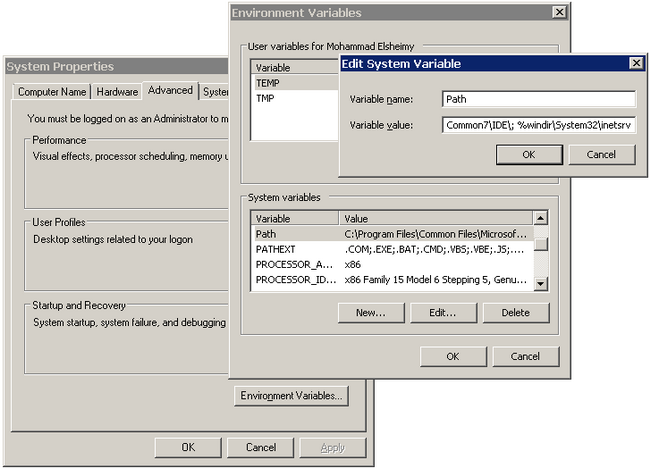
To be able to launch IIS from the Run command, you need to add the IIS directory (%windir%System32inetsrv) to the command search path which is available in system environment variables, and that can be done using the following steps:
Open System Settings (right click Computer and choose properties, or preferably by pressing Start + Pause Break buttons.)
If you are using Windows Vista or Windows 7 choose Advanced System Settings from the left pane.
Go to Advanced -> Environment Variables (see figure 3.)
In the bottom list (System Variables) select Path and click Edit.
Beware not to fail this step. In the Variable Value field, add the symbol ; to the end of the value (if it’s not already added) and then append the following text: %windir%System32inetsrv
Click OK 3 times.
Figure 3 - Setting the Path Environment Variable
Now go to Run (Start + R) and write inetmgr (the name of the IIS Manager) to run the IIS Management tool.
I love my code, and love each of my projects and my development environment. While sleeping I alway dream about the code and Visual Studio! One day, a friend of mine asked me why I have hundreds of lines of old code commented, I told him that I don’t have the heart to kill them! In some projects I have whole code files commented!!!! I feel that my projects are my kids, I can’t let them go, and when it comes to deployment, I feel depression!





 Just Like [a] Magic