In this article, we’ll have a brief discussion of the new features in media stack in Silverlight 5.
Overview
Silverlight 5 has undergone few changes in the media stack:
Better Battery Management:
Less battery when playing media. Plus, no screensaver in the full-screen mode.
Remote Control Support:
Now you can control the media being played in Silverlight 5 using a remote control. This feature is currently not available in the Beta.
Hardware Decoding; More GPU Support:
For better performance, Silverlight 5 depends more on the GPU for media decoding especially for the high definition H.264 formats. In Beta, no DRM or Mac support.
1080p Support:
Combined with hardware decoding, user can now watch high definition 1080p media on a Netbook or Tablet.
IIS Media Services 4:
Support for media streaming using IIS Media Services 4 has been added.
And two more features require more details:
Speed Control; Trick Play:
Allows you to control playing speed, and to play the media forward or backward.
Low-Latency Sounds:
Silverlight 5 has added native support for raw wave files.
Speed Control; Trick Play
This feature allows you to control playing speed, to speed-up or slow-down the media. The ability to change playing speed is called, Trick Play. This feature is available in the MediaElement control through a new property called PlaybackRate. This property takes a decimal value ranges from -8, -4, -2, … to …, 0.5, 1.2, 1.4, 2, 4, 8, and the default is 1. The downside of the Beta version is that it doesn’t have a pitch correction, means that when you change the rate to a value other than the default (1) you wouldn’t have any sound. And because of a bug found in the Beta version, you must set this property in code, if you set it in XAML will reset at application start to the default value.
The following are three examples of changing the playing speed of a media element:
    // Normal Speed
    media.PlaybackRate = 1.0;
    // Fast
    media.PlaybackRate = 4.0;
    // Slow
    media.PlaybackRate = -2.0;
Low-Latency Sounds
In the past, you had to create a wave file parser that reads file headers to determine if this is a wave file, and after recognizing a wave file, the parser reads file contents and encode them in order for your application to be able to play it. That changed completely in Silverlight 5. Today, you have native support for raw sounds data (i.e. low-latency sounds.) You can now play wave files and wave data directly in your application without the need to encode them.
This feature is available through a new API based on the XNA Framework. It uses the same classes and functions available in XNA. The main class you have is SoundEffect (Microsoft.Xna.Framework.Audio) that you can use it to play wave files and raw data. You have all the control over the media played; you can set volume, pitch, and stereo space. And you can create a more sophisticated class of SoundEffect called SoundEffectInstance that represents an instance of that sound file. This instance can be played repeatedly, and allows you to have all the control like SoundEffect and more, as we’ll see in the examples.
Finally, keep in mind that Silverlight 5 has the same limitations as XNA; it allows only for 8/16bit PCM, mono/stereo, 22.5/44.1/48khz wave files.
The following code loads the SoundEffect class with a wave file available in application resources:
    var resource = Application.GetResourceStream(
      new Uri("MediaLowLatency;component/tada.wav",
        UriKind.RelativeOrAbsolute));

    SoundEffect effect = SoundEffect.FromStream(resource.Stream);
After you have the SoundEffect at your hands, you can call the Play() method to play it. This method have two overrides, one can accept no parameters in which it plays the media normally with the default volume and no changes in the pitch or the stereo space. The other override accepts three values:
volume:
Ranges from 0.0f to 1.0f.
pitch:
Ranges from -1.0f to 1.0f. Default is 0f.
pan:
Controls the stereo space. Ranges from -1.0f to 1.0f. Default is 0f.
The following are some examples of playing sound files using SoundEffect:
    // Normal
    effect.Play();
    // Normal (default values)
    effect.Play(1.0f, 0f, 0f);
    // Faster
    effect.Play(1.0f, 1.0f, 0f);
    // Slower
    effect.Play(1.0f, -1.0f, 0f);
And finally you can use the SoundEffectInstance to create multiple instances of the same audio, or to play it repeatedly (Volume, Pitch, and Pan values are available through properties):
While Silverlight 5 manages battery better, it also has improved media performance by depending more on the GPU for media decoding. And it allows now for high definition 1080p and H.264 videos. In addition, Silverlight 5 has introduced remote control support. And finally, the greatest features are its support for raw wave files and the ability to control playing speed.
In this article, we’ll have a brief discussion of the new features in graphics stack in Silverlight 5.
Overview
Silverlight 5 has undergone few changes in the graphics stack:
Improved Performance and Rendering:
Performance has been improved dramatically by using lessons learned from Windows Phone 7. More comes later in this article.
Hardware Acceleration:
Silverlight 5 now depends more on GPU for graphics processing. This frees CPU from much work, and as a result, improves performance.
New 3D API:
The most exciting feature yet. Silverlight 5 now supports native 3D API. More comes later.
Vector Printing:
Very useful for certain cases, not available in the Beta.
Print Preview:
The long-waited printing feature. Silverlight 5 now allows you to show the user a preview of what he is going to print. Yet not available in the Beta.
Now let’s look at the currently available features in details.
Performance Improvements
To improve rendering performance, Silverlight 5 uses the composition model available in Windows Phone 7. This model implies using a separate, dedicated thread for graphics rendering instead of using the UI thread. This helps freeing the UI thread from graphics work, and thus improves the performance of rendering UI elements and reduces flickers and glitchy animations happen when UI thread was interrupted.
In addition, moving the graphics rendering to another thread adds support for independent animations and helps with immediate-mode rendering on the GPU (in which graphics are sent directly and being rendered on the display.)
3D API
Silverlight 5 now supports natively a 3D API. This API is based on the XNA API; you have the same classes and the same code, however, the 3D API is Silverlight is not game-loop based.
While it’s so amazing to have a 3D API natively supported in Silverlight, things are not as good as they seem. The 3D API of Silverlight 5 is very low-level, means that you have access to the GPU, vertex shaders, and other 3D primitives. It’s not as easy as it should be; it requires that you have a solid understanding of low-level graphics and game development to be able to interact with this API. However, the good news is that community will likely wrap this low-level API into simpler components.
Technically, to draw graphics on the screen you need to use the new control DrawingSurface where all the rendering and graphics go on. This control offers a Draw event that you can use to supply your drawing calls. The calls are carried to a GraphicsDevice object and then be processed and carried to the display.
Because of the complexities in this low-level API, and because we assume that you are a business developer, we won’t discuss the 3D API. Instead, we’ll have a brief look at two of the great samples of this API.
Cube Sample
The cube sample (download from http://bit.ly/sl5-cubesample, colored, non-textured) demonstrates how to create and rotate a 3D cube in Silverlight 5. Here’s a screenshot of this sample:
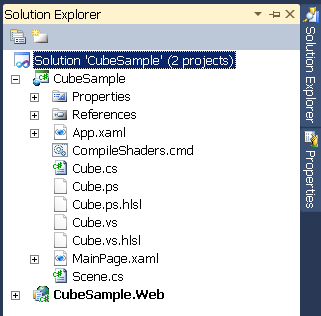
Looking at the Solution Explorer at project files, we can see that the project contains some pixel shader (PS) and vertex shader (VS) files. Those files besides the HLSL files contain the code (in the HLSL language) for the effects required to render the cube.
Moving to MainPage.xaml you can see the DrawingSurface object used to display the graphics and drawings.
Looking at the code behind at the Draw event handler, we can see that the sample has encapsulated all the code required for drawing the cube and rotating it into a new class called Scene. The Draw event passes the GraphicsDevice object to the Scene to have it draw the cube and other graphics into the device:
// init the 3D scene
Scene scene = new Scene();

public MainPage()
{
    InitializeComponent();
}

void OnDraw(object sender, DrawEventArgs args)
{
    // draw 3D scene
    scene.Draw(args.GraphicsDevice, args.TotalTime);

    // invalidate to get a callback next frame
    args.InvalidateSurface();
}
Moving to the Scene class, we can see that it creates another class that handles drawing the Cube, and has configured the view and camera position and completes the drawing in the Draw() function by clearing the screen and calling the Draw() function of the cube.
public class Scene
{
    Matrix view; // The view or camera transform
    Matrix projection;

    // The single Cube at the root of the scene
    Cube Cube = new Cube();

    public Scene()
    {
        // the camera's position
        Vector3 cameraPosition = new Vector3(0, 0, 5.0f);
        // the place the camera is looking (towards world origin)
        Vector3 cameraTarget = Vector3.Zero;

        // the transform representing a camera at a position looking at a target
        view = Matrix.CreateLookAt(cameraPosition, cameraTarget, Vector3.Up);
    }

    ...

    public void Draw(GraphicsDevice graphicsDevice, TimeSpan totalTime)
    {
        // clear the existing render target
        graphicsDevice.Clear(ClearOptions.Target | ClearOptions.DepthBuffer,
            Color.Transparent, 1.0f, 0);

        // draw the Cube
        Cube.Draw(graphicsDevice, totalTime, view * projection);
    }
}
Finally, the Cube class completes all the drawing by loading the vertex and pixel shaders in its constructor, configuring cube surfaces and surface colors in the CreateCube() function, and then performs the drawing and handling the animation in the Draw() function.
public class Cube
{
    // the device to use when creating resources
    static readonly GraphicsDevice resourceDevice
        = GraphicsDeviceManager.Current.GraphicsDevice;

    // resources
    VertexShader vertexShader;
    PixelShader pixelShader;

    public Cube()
    {
        // Initialize resources required to draw the Cube
        vertexBuffer = CreateCube();

        Stream shaderStream = Application.GetResourceStream(
            new Uri(@"CubeSample;component/Cube.vs", UriKind.Relative)).Stream;
        vertexShader = VertexShader.FromStream(resourceDevice, shaderStream);

        shaderStream = Application.GetResourceStream(...);
        ,,,
    }

    VertexBuffer CreateCube()
    {
        // cube vertices
        var cube = new VertexPositionColor[36];

        // face coordinates
        Vector3 topLeftFront = new Vector3(-1.0f, 1.0f, 1.0f);
        Vector3 bottomLeftFront = new Vector3(-1.0f, -1.0f, 1.0f);
        ...

        return vb;
    }

    public void Draw(GraphicsDevice graphicsDevice, ...)
    {
        // update cube transform
        Matrix position = Matrix.Identity; // origin
        Matrix scale = Matrix.CreateScale(1.0f); // no scale modifier

        ...

        // setup pixel pipeline
        graphicsDevice.SetPixelShader(pixelShader);

        // draw using the configured pipeline
        graphicsDevice.DrawPrimitives(PrimitiveType.TriangleList, 0, 12);
    }
}
Lengthy, isn’t it? Now, let’s have a look at another example.
Solar Wind
The Solar Wind 3D sample (download from http://bit.ly/sl5-solarwind) uses the new 3D features of Silverlight 5 to draw the Earth with day and night transitions, atmosphere layers, and population density overlays. It demonstrates advanced concepts and it’s very cool that you’ll like to run and play with it.
Babylon3D
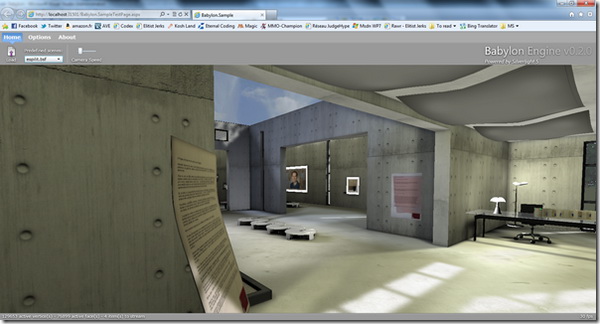
The most amazing sample yet (download from http://bit.ly/sl5-babylon3d), it shows a full 3D realtime engine with some advanced features and an integrated collisions system.
Summary
Silverlight 5 has got few improvements in the graphics stack:
Improved performance:
Uses the composition model of Windows Phone 7; a separate, dedicated thread for graphics and drawing.
Hardware Acceleration:
Depending more on GPU for graphics processing. Frees CPU from much work, and as a result, improves performance.
New 3D API:
A low-level 3D API based on XNA Framework. Difficult to work with. Community will likely wrap to simplify use.
Vector Printing:
Very useful for certain cases, not available in the Beta.
Print Preview:
Allows for print previews. Not in Beta.
In this article, we’ll have a brief discussion of the new features of controls and text in Silverlight 5.
Overview
Silverlight 5 has undergone few improvements in controls and text; new added features for controls, and rendering and performance enhancements for text.
The following are the new features of controls in Silverlight 5:
Text tracking and leading control
Text overflow
Multi-click support
Type-ahead text searching
SaveFileDialog DefaultFilename
DataContextChanged event (not in Beta)
And text has been improved in in a few ways:
Rendering is now better
Performance of text layout has been improved
Text clarity is improved with Pixel Snapping
OpenType support has been enhanced
As improvements in text were all about rendering and performance, we won’t talk more about the text improvements. Instead, we’ll focus in this article on control stack and cover the changes that happened to it in details.
Text Tracking and Leading Control
Silverlight 5 has added three features to text controls (TextBlock, TextBox, and RichTextBox) to allow you to control precisely text tracking and leading space for characters and lines:
Character Spacing
Line Height
Line Stacking Strategy
Character Spacing
This feature allows you to precisely set how far apart each character is. This feature is available in all text controls through a property called CharacterSpacing that specifies the distance between characters. This distance is measured by 1000th of the current font size, means that for instance if you set the font size to 20px and character spacing to 500, then the distance will be 10px between each character (since 20 * 500 / 1000 = 10px.)
Here’s an example of a TextBlock that uses the character spacing feature to put 10px between each character:
<TextBlock FontSize="20" CharacterSpacing="500">
  Lorem ipsum dolor sit amet, consectetur adipiscing elit.
</TextBlock>
Line Height
This feature allows you to set precisely the height of each line of the content in a text controls. It’s available in all text controls through a property called LineHeight and, unlike CharacterSpacing, it’s measured in pixels.
The following code sets the height of each line in the text to 50px:
<TextBlock Margin="5" LineHeight="50">
  Lorem ipsum dolor sit amet, consectetur adipiscing elit.
  <LineBreak />
  Lorem ipsum dolor sit amet, consectetur adipiscing elit.
  <LineBreak />
  Lorem ipsum dolor sit amet, consectetur adipiscing elit.
</TextBlock>
Line Stacking Strategy
This feature allows you to specify how each line box is determined. For example, if you’re in a scenario like the following where you have some text larger than other text, what will you do? Would you increase the height for each line to accommodate the size for the larger text and allow the text to be readable? Or would you leave the text as it as if there wasn’t any text with different font size? That’s what the stacking strategy is all about.
<TextBlock Margin="25" FontSize="12">
  Lorem ipsum <Span FontSize="20">dolor sit amet</Span>, ...
  <LineBreak />
  Proin aliquam augue quis ipsum <Span FontSize="38">rhoncus</Span> ...
  <LineBreak />
  Quisque eleifend ante vitae velit vehicula luctus. ...
</TextBlock>
The stacking strategy is available to your code through a new property called LineStackingStrategy. This property takes one value of three:
MaxHeight (default):
Increases the size of each line’s box enough to hold its content. If LineHeight is set, adds the value of LineHeight to the determined value of the height of line’s box.
BlockLineHeight:
Uses value from LineHeight if specified. Otherwise, increases the size for each line’s box to hold its various font sizes content.
BaselineToBaseline:
Uses value from LineHeight if sepified. Otherwise, uses the default line height that doesn’t care about whether the content has larger text or not.
The following figure compares between the three stacking strategies while setting LineHeight and while not setting it.
Makes sense?
Text Overflow
This feature allows for multi-column and free-form text layouts. It’s available for RichTextBoxes only. You set a RichTextBox as the master element, and link it to the new RichTextBoxOverflow to capture extra text that doesn’t fit in the master RichTextBox. You can also continue the chain and link another RichTextBoxOverflow to the previous one to capture extra text that doesn’t fit there and so on. To link an overflow control to another one, you use the new OverflowContentTarget property available in the previous control to bind to the next overflow control.
The following figure shows how you can use overflow controls to create multi-column text:
And the following shows an example of a free-form text where the text wraps around an object in the center:
The following example creates a multi-column text:
Silverlight 5 now allows you to capture multi-clicks in controls. It can capture any n-clicks, but most of the time you’ll capture double-clicks and sometimes triple clicks. This feature is available through a property called ClickCount available in MouseButtonEventArgs. While MouseButtonEventArgs is available in ButtonDown and ButtonUp events, ClickCount is only valid on MouseLeftButtonDown and MouseRightButtonDown, it always return 1 from ButtonUp events.
The following code shows how you can capture multiple clicks in a TextBlock, it updates the TextBlock for each click:
Type-ahead text searching capability in Silverlight 5 allows you to search in a collection control (e.g. ComboBox, ListBox, etc.) using keyboard; you reach the desired item by typing the first letters of its content.
The content that the control searches in must be specified in DisplayMemberPath. For example, in our books scenario to search in book titles you must set DisplayMemberPath to the Title field. This leads up to another problem, if you have set a data template, you cannot set DisplayMemberPath along with it. This problem can be solved by using the new Silverlight 5 XAML feature, implicit data templates, which has been covered earlier in the previous article.
In our books scenario, we have the following ComboBox that has an implicit data template applied:
<ComboBox x:Name="books" />
And we have also the following code that populates the ComboBox and sets the DisplayMemberPath to allow searching using keyboard:
books.ItemsSource = new BookData().OrderBy(b => b.Title);
books.DisplayMemberPath = "Title";
The application works perfectly now. But if you convert the data template to an explicit data template like the following:
You receive the following error, because DisplayMemberPath cannot be set while setting an ItemTemplate:
SaveFileDialog DefaultFilename
Now in Silverlight 5 you can set the default filename in SaveFileDialog (using the new DefaultFileName property) that will show in the file name box when you launch the dialog:
SaveFileDialog dialog = new SaveFileDialog();
dialog.DefaultFileName = "Foo";
dialog.ShowDialog();
DataContextChanged Event
This feature is currently not available in Beta; it should be available in the final version. It occurs when the DataContext object for a control changes.
Summary
For controls in Silverlight 5, we have the following improvements:
Text tracking and leading control:
Allows you to set character spacing, line height, and line stacking strategy for a text control.
Text overflow:
Available for RichTextBoxes. Allows for multi-column and free-form text layouts.
Multi-click support:
Allows you to capture any n-clicks.
Type-ahead text searching:
Allows searching in a collection control using keyboard.
SaveFileDialog DefaultFilename:
Allows you to set the default file name for SaveFileDialog.
DataContextChanged event:
Not in beta. Occurs when the DataContext object for a control changes.
And in the text stack, there were some improvements related to performance and rendering:
In this article, we’ll have a brief discussion of the new XAML features of Silverlight 5.
Overview
Silverlight 5 has the following changes in the XAML stack:
Implicit Data Templates
Ancestor RelativeSource
Binding in Styles
Markup Extensions
XAML Debugging
Let’s see them in action one after one.
Model
Our demos in this section are based on a very simple model consists of just a collection of paper books and audio books. We have the following business model:
public class Book
{
  public string Title { get; set; }
  public string Author { get; set; }
  public decimal Price { get; set; }
}

public class PaperBook : Book
{
  public string Isbn { get; set; }
  public int Pages { get; set; }
}

public class AudioBook : Book
{
  public TimeSpan Duration { get; set; }
}
And here’s our collection:
public class BookData : List
{
  public List PaperBooks
  {
    get
    {
      return (from b in this where b is PaperBook
          select (PaperBook)b).ToList();
    }
  }

  public List AudioBooks
  {
    get
    {
      return (from b in this where b is AudioBook
          select (AudioBook)b).ToList();
    }
  }

  public BookData()
  {
    this.Add(new PaperBook()
    {
      Title = "The Sixth Man",
      Author = "David Baldacci",
      Isbn = "9780446573108",
      Pages = 432,
      Price = 14.28m,
    });

    ...

    this.Add(new AudioBook()
    {
      Title = "Water for Elephants",
      Author = "Sara Gruen",
      Duration = new TimeSpan(11, 29, 00),
      Price = 21.56m,
    });
  }
}
Implicit Data Templates
Silverlight 5 has got one of the great features of data templates in WPF, Implicit Data Templates. Instead of explicitly attaching the data template to every control, you can set a data type (through the DataType property) that the data template will apply to and then the data template will be applied automatically to any control that’s trying to display that data type.
Keep in mind that an implicit data template applies only to controls that…
Trying to display the data type specified
Have a templatable content (e.g. collection controls)
Defined in the scope of the template
So the implicit data template won’t apply to any other control doesn’t meet those requirements.
Implementation:
Let’s see implicit data templates in action. In the following scenario we have a list box that uses a data template to display some books and it gets populated through the code:
We could refactor this code by making the data template implicit, and this can be done by moving the data template from the list box to application resources (for instance) and specifying the data type, and then the data template will be applied automatically to each templatable-content control trying to display the data type specified:
Now let’s do something more interesting to see the real power of implicit data templates. Instead of having a simple data template, we’ll have two templates for the two types of books, once for the paper books, and the other for the audio books:
As you see, each data template will be applied to a templatable-content control that tries to display the data type it specifies. In addition, both the data templates would be applied to a collection control that tries to display a collection of both PaperBook and AudioBook.
Ancestor RelativeSource
This is another feature of XAML that Silverlight 5 has got from WPF. It allows you to bind to a property in a parent control. This is especially useful in situation where you are in a data template and wish to bind to a property in a control outside the template higher in the render tree.
Implementation:
You use {Binding.RelativeSource} to specify the source in the tree.
Use the AncestorType property to specify the type of the parent control that you wish to bind to.
Use AncestorLevel to specify how far is the parent control of the type specified from the current control.
The following TextBlock controls all bind to the same Tag property found in the root StackPanel:
And here’s a more complex example. In the following example we change the color of a control inside an item template based on whether the item is selected or not. For this to work we bind to the IsSelected property of the ListBoxItem control (that represents an item on the list box) and we use a type converter to return a color based on a Boolean value:
This is another feature of XAML that Silverlight 5 has got from WPF. It allows you to bind directly in style setters, and that would allow changing styles automatically at runtime by changing source objects.
Implementation:
In the following scenario, we have a class that contains brushes used in the application:
public class MyBrushes
{
  public SolidColorBrush MainBrush { get; set; }

  public MyBrushes()
  {
    MainBrush = new SolidColorBrush(Colors.Red);
  }
}
And we have a style that binds to that class and gets the main brush from there (as you can see, all binding features are available now in style setters):
Finally, we can change the style automatically at runtime by changing the source brush using code like this:
  MyBrushes brshes = Application.Current.Resources["brushes"] as MyBrushes;
  brshes.MainBrush.Color = Colors.Red;
Markup Extensions
Markup extensions allow you to execute code at XAML parsing time, they are like {Binding}, {StaticResource}, {RelativeSource}, etc. The new feature of XAML in Silverlight 5 is the ability to create custom markup extensions. They provide more concise syntax, and they are easier and simpler than attached properties.
Implementation:
An example of a very simple markup extension is an extension that sums two numbers and returns the result to the control (the following TextBlock would have the text ‘3’ at runtime):
So how to create such an extension? You can create markup extensions by implementing the generic IMarkupExtenstion interface (in System.Xaml namespace) that accepts a type parameter specifies the return type from the extension (must be a reference type.) After that, you provide extension parameters as properties, and you implement ProvideValue() to do the work and return the results to the XAML.
The following code defines our summation extension:
public class SumExtension : IMarkupExtension<object>
{
  public int FirstNumber { get; set; }
  public int SecondNumber { get; set; }

  public object ProvideValue(IServiceProvider serviceProvider)
  {
    return (FirstNumber + SecondNumber).ToString();
  }
}
And here’s a more complex example. In the books scenario, we have defined a markup extension that returns a collection of books based on the book type (paper/audio):
public class BookLocatorExtension : IMarkupExtension<object>
{
  public BookType Type { get; set; }

  public object ProvideValue(IServiceProvider serviceProvider)
  {
    if (Type == BookType.Paper)
      return BookData.PaperBooks;
    else
      return BookData.AudioBooks;
  }
}

public enum BookType { Paper, Audio }
The last new XAML feature introduced in Silverlight 5 is the ability to debug data bindings. It is very useful when watching for binding errors and it works by placing a breakpoint inside the binding in XAML and watching the Locals window and other Visual Studio windows for binding details.
Keep in mind that XAML debugging works only in Internet Explorer 9.
Implementation:
In our books scenario, we have the following data form:
Now, put a breakpoint inside the binding in the list box and run the application to see what happens.
When you run the application, Visual Studio stops on the breakpoint while it loads the list box with data. Looking at the Locals window we can see binding details:
Here we have the details encapsulated in a BindingState, and the current state is UpdatingTarget means that it’s a Pull operation where list box gets loaded with data.
We can see that we have 5 items in the list referred by FinalSource. In addition, we don’t have any errors or validation errors yet.
Now stop the application, and let’s try something else. Try inserting the breakpoint into the Price text box instead and run the application.
As you can see, Visual Studio stops on both Push and Pull operations. The Pull operation happens when the text box get loaded by the data, and the Push operation happens when the value in the text box changes and gets updated to the source.
Now try writing some invalid data in the price text box (e.g. some letters) and watch the Locals Window:
Now you watch out any error that might happen in binding.
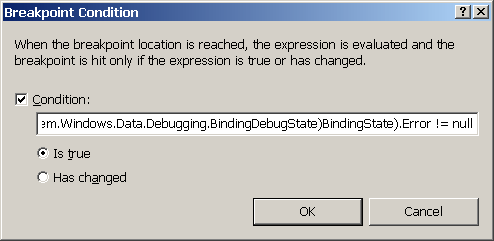
The last thing to mention is that conditions and filters can be used in the breakpoints. As an example, you can use the following condition to tell Visual Studio to stop only on binding errors and not in every operation:
The first thing to know about Silverlight 5 is that it’s currently in beta, means that it definitely has bugs, and it also not yet feature-complete; some features are going to be shipped later in the final version. In addition, being in beta means that no go-live license available, this is for internal use and testing only so do not install on user’s machine.
Worth mentioning that Silverlight 5 was first announced at PDC 2010 conference (October 2010) and the beta version was shipped later at MIX11 (April 2011,) and the final version will be released soon this year.
Goal
Goals of the version 5 include:
Improving performance
Getting closer to WPF
Enabling line-of-business scenarios
Better development experience
Improvements
Silverlight 5 has come with lots of improvements and changes, and those improvements can be divided into several areas:
In this article we’ll have a brief introduction to Microsoft Silverlight, see how it fits with other technologies today, and watch it in action. Get ready!
What is Silverlight
Definition
Silverlight is a Microsoft technology aimed to help developers create rich interactive Web applications with the best user interface features and functionalities. It’s available as a plugin for almost all famous browsers available today, and it’s used to deliver the next generation media and Web applications.
Figure 1 - Silverlight Logo
When we say rich applications we don’t mean those with amazing interfaces and lots of graphics. Indeed, we mean by “rich” those have lots of functionalities not available for standard Web applications. Common examples of rich applications are online document editors and image processors; both are very interactive and offer lots of functionalities that are usually not available for standard Web applications. And that actually what Silverlight is devoted for, its main goal is to allow for developing rich interactive applications for the Web.
Platform Support
Unlike many other Microsoft technologies, Silverlight applications can run everywhere. It’s said to be cross-platform, cross-browser, and cross-device. It can run on Windows, Linux, and even Mac, it can run on Internet Explorer, Mozilla Firefox, Google Chrome, and many others, and it also can run on PCs, mobile devices, and handhelds. Really it can run everywhere without any code changes!
One more interesting thing is that Silverlight Web applications can be hosted on any server. You can host your Silverlight application on a Windows, Linux, or Mac server without any additional code changes or configuration.
Rich Interactive Applications
We have been talking about rich interactive applications for a while; now let’s see what a rich interactive application really means.
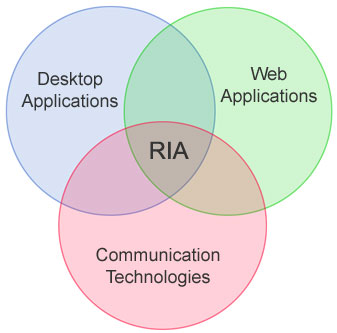
A Rich Interactive/Internet Application (RIA) is a Web application that’s very interactive with the user and has lots of functionalities. It’s very similar to desktop applications comparing interactivity and features; however, it’s a Web application that runs on the browser not the desktop. So we can say that RIA applications have the best functionalities and user interface features of desktop applications and Web applications.
Figure 2 - RIA
Today, there’re lots of technologies available for creating RIA applications. The most famous platforms are Adobe Flash, Microsoft Silverlight, and Sun Java. Worth mentioning that every platform of the above mentioned (that includes Silverlight of course) is available through a plugin for the browser, and therefore its runtime must be installed on user’s machine in order to be able to run the application.
RIA Stats
Now someone asks: Who wins the race? What’s the best RIA platform that one can spend his time and effort to learn?
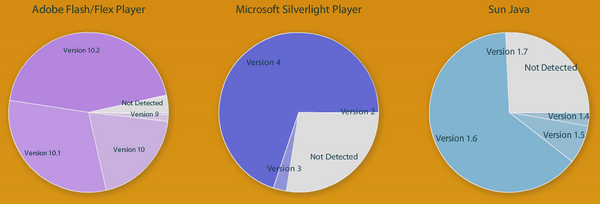
First of all, let’s have a look at the following diagrams that represent penetration rates of Adobe Flash, Microsoft Silverlight, and Sun Java. The first diagram we have comes from http://riastats.com and it shows that Adobe Flash is installed on almost 96% of internet-connected machines. Microsoft Silverlight comes in the second place with about 74% of total internet-connected machines. And Sun Java comes third with about 73% of internet-connected machines.
Figure 3 - RIA Stats
StatOWL shows a bit different data with more details:
Figure 4 - Stats from StatOWL
Looking at the above diagrams we can see that Microsoft Silverlight did a great job in a very short time (first release was on 2007.) However, we can’t depend much on this data since, as you know, Microsoft Silverlight is installed automatically on Windows machines via Windows Update.
Now, let’s have a look at Microsoft Silverlight features and see what makes it the best RIA platform yet.
Why Silverlight
Other than being delivered by Microsoft, some features of Silverlight are:
It’s FREE.
It runs on all popular browsers, platforms, and devices.
It can be run in browser and as a desktop application.
Easy to create excellent UIs that looks “WOW”.
Enables business application development.
Supports 2D/3D animations/graphics.
Natively supports CLR and .NET Framework.
Can be automated using JavaScript.
Supports a variety of media (audio/video) formats with streaming capabilities.
Supports a variety of rich controls including the DataGrid.
Supports a variety of enterprise technologies including WCF.
In addition, Silverlight is considered to be the main development framework for Windows Phone.
Figure 5 - Windows Phone
Silverlight vs. Flash
Silverlight and Flash are very similar, so which is better, Silverlight or Flash? Since I’m a Microsoft developer and since you are reading now in a .NET blog, and although I haven’t ever developed for Flash, I can say that Silverlight is the best RIA platform ever!!! However, we need to be more serious.
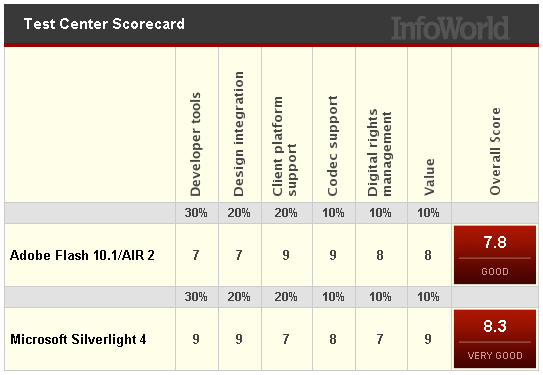
InfoWorld did a review and compared between Silverlight and Flash, and the results were so great, Silverlight passed Flash and scored 8.3 points, while Flash got 7.8 points only.
Figure 6 - Silverlight vs. Flash, InfoWorld
Silverlight vs. WPF
Windows Presentation Foundation (WPF) is a graphical subsystem utilizing DirectX for rendering UI in Windows-based application, developed by Microsoft and introduced as part of Microsoft .NET Framework 3.0 and Windows Vista. WPF is considered to be the replacement for WinForms (that considered now Feature-Complete,) while WinForms relies on the older GDI subsystem, WPF relies on DirectX.
On the other hand, Silverlight is actually a subset of WPF, and formerly Silverlight was codenamed WPF/E (WPF/Everywhere) because it’s considered to be the cross-platform version of WPF. And while WPF focuses on desktop development, Silverlight focuses on Web development.
Figure 7 - Silverlight vs. WPF
Rich vs. Reach
The following diagram compares some of the available Web development technologies in terms of richness (i.e. UI functionalities) and reach (platform and browser support.)
Figure 8 - Rich vs. Reach
From the above diagram we can see that WPF has the best UI features today. However, it’s devoted primarily for desktop development, and it can run only on Windows platforms.
On the other hand, ASP.NET can run everywhere, but unfortunately it doesn’t support the UI functionalities required for today’s Web.
And finally, Silverlight has the best of UI functionalities, and it also supports a wide range of platforms and browsers (its platform/browser support is expanded each release.)
Showcase
To get a solid understanding of what Silverlight can do, check out some of the Silverlight applications from around the world:
Deep Earth (http://deepearth.codeplex.com)
A project utilized Bing Maps allows you to check maps and get directions.
And another great feature of Silverlight is the DeepZoom technology that was introduced by Microsoft as part of Silverlight. DeepZoom allows you to view very large high resolution images. It reduces the time of initial load by downloading only the region being viewed at the resolution it’s displayed at. Subsequent regions are downloaded as the user pans to (or zooms into) them.
Figure 9 - Deep Zoom, Microsoft Silverlight
Deep Inside
Silverlight and XAML
Like WPF, user interface in Silverlight is declared in a specific language called Extensible Markup Language (or XAML, pronounced ‘Zammel’.) XAML is an XML-based language created by Microsoft which is used to initialize structured values and objects. XAML elements are mapped directly to CLR objects (e.g. a <Button> element maps to a Button object.)
Figure 10 - XAML Logo
Former ASP.NET developers are somewhat familiar with the nature of XAML. You have a WYSIWYG XAML designer that you use to design the interface of your application. The code for this interface is available through a code-behind file, where you can write in your preferred .NET language.
The concept of two files for the same page (e.g. a XAML file for the interface and a CS file for the C# code) separates two main roles in application development, design and development. The designer can work in the XAML file, and the developer can work in the code file, and both files are linked together. This also leads to a loosely-coupled design that separates user interface code from the business logic.
Figure 11 - Designer vs. Developer
Deployment Process
What steps you would follow to deploy your Silverlight application to your users? That’s what this section is devoted for.
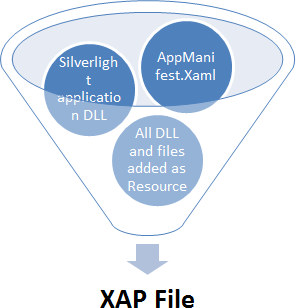
When you build your Silverlight application, the XAML markup, as well as the code and all other resources, is compiled into .NET assemblies which are then compressed using ZIP and stored in a XAP (.xap) file.
Figure 12 - XAP Files
The XAP file can then be hosted in a Web server and referenced by Web pages declaring the Silverlight plugin object. And when the user navigates to the page, the XAP file is downloaded to his PC and executed on the Web page by the Silverlight runtime.
Figure 13 - Silverlight Application Deployment Process
So all you need is just to develop your application, get the XAP file, insert the plugin into a Web page, and then publish the page and the XAP file to the Web.
Silverlight Architecture
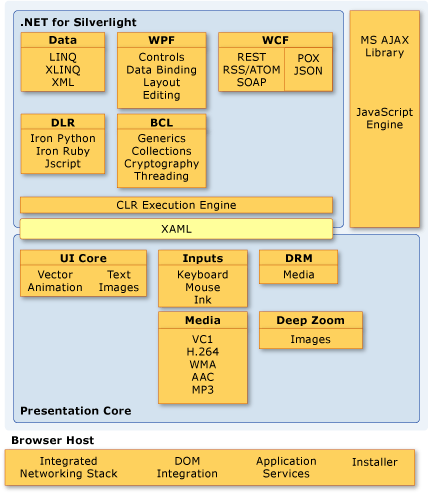
The following illustration shows the essential architecture and components of Microsoft Silverlight. It shows how the presentation (interface) core components fit together with other .NET and Silverlight components, and what services does the provider offer.
Figure 14 - Silverlight Architecture
Silverlight 5
The current stable version of Silverlight is Silverlight 4. Back to PDC 2010 the 5th version of Silverlight was introduced, it’s still in Beta but it’s supposed to be released soon.
Figure 15 - Silverlight 5 Logo
Here’s a brief overview of the forthcoming Silverlight 5 features:
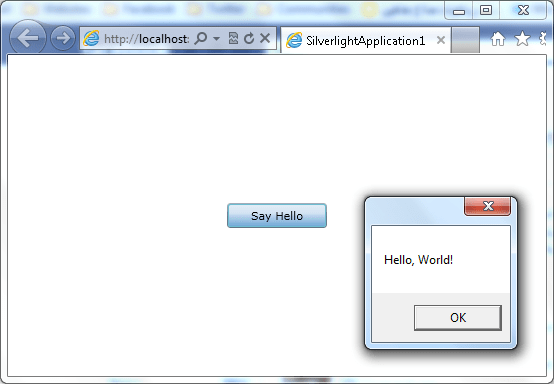
In the following example, we’ll create the Hello World application in Silverlight. Follow those steps:
First, ensure that Silverlight SDK is installed on your PC, and launch Visual Studio 2010 and select New Project.
Figure 18 - Creating a New Silverlight Application
From the New Project dialog, select your desired language from the left and select Silverlight as project type. From the middle pane, select Silverlight Application to start.
Now another dialog appears asks you to specify whether to create another Web application to host the Silverlight application or not. As you know, Silverlight applications run inside a plugin defined in a Web page, and that dialog asks if to create a new Web Application project for you to host the Silverlight application or to create just a simple HTML page to host it. Leave the dialog with no changes and ensure that you have selected Silverlight 4 from the Silverlight Version combo box and click OK to proceed.
Figure 19 - New Silverlight Application Settings
Now let’s have a look at what Visual Studio has created for us. Looking at the Solution Explorer we can see that Visual Studio has created two projects, one is the Silverlight project, and the other is a Web project that’s going to host this Silverlight application.
Figure 20 - Silverlight Project in Solution Explorer
Looking at the Web project we can see that VS has included two test pages in that project, the first is an ASPX page and the second is a simple HTML page, both define the Silverlight plugin and both are ready to show you your Silverlight application when you browse to them. The difference is that ASPX pages can define ASP.NET elements and code, while the simple static HTML cannot.
Back to the Silverlight application, we can see that it define 4 files:
App.xaml.cs (C# code file, linked to App.xaml):
Define the startup logic and any other application-wide code.
MainPage.xaml:
The main application page; contains the interface elements.
MainPage.xaml.cs (C# code file, linked to MainPage.cs):
The business logic and code for the main application page.
Then we have two pages, the first is App.xaml that defines the application-wide elements and code (inside App.xaml.cs,) and the second is MainPage.xaml that defines the main page of your application where you can define your interface elements and code them (inside MainPage.xaml.cs.)
Now let’s design our interface. Go to MainPage.xaml and inside the <Grid> element define a Button (you can also drag the button from the Toolbox to the designer to define it):
From the previous line of code we can see that we have defined a Button control using a <Button> element, and we have also set the control’s characteristics and properties using the element attributes. And to have our button respond to user clicks, we have wired up the Click event into the function Button_Click() that we’re going to define it in the code file.
Now go to MainPage.xaml.cs and define the Click event handler for the button:
Before we leave this section, let’s have a look over the plugin required for Silverlight. Go to and of the test pages on the Web project and step down until you reach the <object> element that defines the plugin. Simply, the Silverlight application requires only the following HTML code to define its plugin:
As you see, we have references the XAP file in the page by using the source parameter. When you build your application in Visual Studio, it will create a new folder besides the test page called ClientBin and put the XAP file inside it so you can reference it in the page.
Clear, aih?
Summary
Silverlight is a cross-platform application framework for writing and running rich Internet applications (RIA.)
Its runtime is available as a cross-browser, cross-platform, and cross-device plug-in.
It’s the main development framework for Windows Phone.
It’s a subset of WPF so it depends on XAML for UI design.
You define the interface using XAML, and write the code using your preferred .NET language.
The XAML markup, as well as the code, is compiled into .NET assemblies and compressed into a XAP file.
The XAP file is then referenced by a prepared Web page and then downloaded to client’s PC when he navigates to the page.
Version 4 is the current stable version of Silverlight.
Silverlight 5 is currently in beta and it will be released soon.
You use Visual Studio 2010 and Microsoft Expression Studio for developing and designing your Silverlight application.
Microsoft Expression Studio is preferred for you if you are a designer.
هذه المقالة متوفرة أيضا باللغة العربية، اقرأها هنا.
Overview
Stephen Hawking is one of the most famous people using speech synthesis to communicate
In this article we are going to explore the Speech API library that’s part of the TTS SDK that helps you reading text and speaking it. We’re going to see how to do it programmatically using C# and VB.NET and how to make use of LINQ to make it more interesting. The last part of this article talks about…… won’t tell you more, let’s see!
Introduction
The Speech API library that we are going to use today is represented by the file sapi.dll which’s located in %windir%System32SpeechCommon. This library is not part of the .NET BCL and it’s not even a .NET library, so we’ll use Interoperability to communicate with it (don’t worry, using Visual Studio it’s just a matter of adding a reference to the application.)
Implementation
In this example, we are going to create a Console application that reads text from the user and speaks it. To complete this example, follow these steps:
As an example, we’ll create a simple application that reads user inputs and speaks it. Follow these steps:
Create a new Console application.
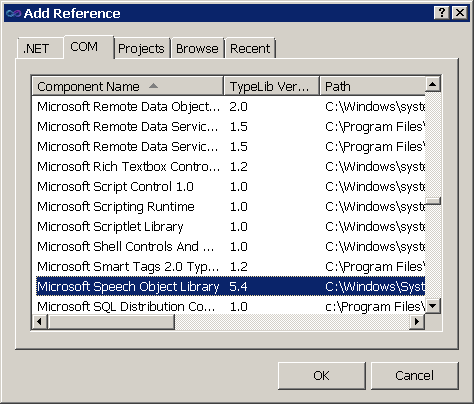
Add a reference to the Microsoft Speech Object Library (see figure 1.)
Figure 1 - Adding Reference to SpeechLib Library
Write the following code and run your application:
// C#

using SpeechLib;

static void Main()
{
    Console.WriteLine("Enter the text to read:");
    string txt = Console.ReadLine();
    Speak(txt);
}

static void Speak(string text)
{
    SpVoice voice = new SpVoiceClass();
    voice.Speak(text, SpeechVoiceSpeakFlags.SVSFDefault);
}
' VB.NET

Imports SpeechLib

Sub Main()
    Console.WriteLine("Enter the text to read:")
    Dim txt As String = Console.ReadLine()
    Speak(txt)
End Sub

Sub Speak(ByVal text As String)
    Dim voice As New SpVoiceClass()
    voice.Speak(text, SpeechVoiceSpeakFlags.SVSFDefault)
End Sub

If you are using Visual Studio 2010 and .NET 4.0 and the application failed to run because of Interop problems, try disabling Interop Type Embedding feature from the properties on the reference SpeechLib.dll.

Building Talking Strings
Next, we’ll make small modifications to the code above to provide an easy way to speak a given System.String. We’ll make use of the Extension Methods feature of LINQ to add the Speak() method created earlier to the System.String. Try the following code:
// C#

using SpeechLib;

static void Main()
{
    Console.WriteLine("Enter the text to read:");
    string txt = Console.ReadLine();
    txt.Speak();
}

static void Speak(this string text)
{
    SpVoice voice = new SpVoiceClass();
    voice.Speak(text, SpeechVoiceSpeakFlags.SVSFDefault);
}
' VB.NET

Imports SpeechLib
Imports System.Runtime.CompilerServices

Sub Main()
    Console.WriteLine("Enter the text to read:")
    Dim txt As String = Console.ReadLine()
    txt.Speak()
End Sub

<Extension()> _
Sub Speak(ByVal text As String)
    Dim voice As New SpVoiceClass()
    voice.Speak(text, SpeechVoiceSpeakFlags.SVSFDefault)
End Sub
I Love YOU ♥
Let’s make it more interesting. We are going to code a VBScript file that says “I Love YOU” when you call it. To complete this example, these steps:

Open Notepad.
Write the following code:
CreateObject("SAPI.SpVoice").Speak "I love YOU!"
Of course, CreateObject() is used to create a new instance of an object resides in a given library. SAPI is the name of the Speech API library stored in Windows Registry. SpVoice is the class name.
Save the file as ‘love.vbs’ (you can use any name you like, just preserve the vbs extension.)
Now open the file and listen, who is telling that he loves you!


Microsoft Speech API has many voices; two of them are Microsoft Sam (male), the default for Windows XP and Windows 2000, and Microsoft Ann (female), the default for Windows Vista and Windows 7. Read more about Microsoft TTS voices here.
Thanks to our friend, Mohamed Gafar, for providing the VBScript.
Another article of our endless series that talks about accessing URL shortening services programmatically.
This article is talking about 1click.at shortening service, how you can use it, and how to access it via your C#/VB.NET application.
Introduction
We can’t say that 1click.atis not one of the well-known services nor it has anything special, however, as long as it provides an API we are very interested in it.
When you visit service website, http://1click.at, you can see that nothing easier from 1click.at, just push your long URL into the text box and click the shortening button.
API
1click.at provides you a very simple easy-to-use API. This API contains only one function that’s used for shortening URLs. Another good thing is that this function doesn’t require any kind of authentication for users. Therefore, you need just to send it your long URL (as you did with the website.)
action:
Yet, it can accept only one value, shorturl, which orders the function to shorten the specified url.
url:
The long URL to be shortened.
format:
The format of the returned data from the function. Can be simple, xml, or json.
As you know, the .NET BCL doesn’t support JSON (some third-party components do,) and thus, we won’t cover JSON data returned from the function. Rather, we’ll concentrate on plain and XML data returned.
When the format of this function is XML, the returned data, if the function succeeded, is like the following if this is your first time you shorten this URL:
Now, let’s do it in C# and VB.NET. Check the following function that tries to shorten long URLs via the id.gd API:
// C#

string Shorten(string url, bool xml)
{
    url = Uri.EscapeUriString(url);
    string reqUri =
String.Format("http://1click.at/api.php?action=shorturl&url={0}&format={1}",
        url, xml ? "xml" : "simple");

    HttpWebRequest req = (HttpWebRequest)WebRequest.Create(reqUri);
    req.Timeout = 10000; // 10 seconds

    // if the function fails and format==txt throws an exception
    Stream stm = req.GetResponse().GetResponseStream();

    if (xml)
    {
        XmlDocument doc = new XmlDocument();
        doc.Load(stm);

        // error checking for xml
        if (doc["result"]["statusCode"].InnerText != "200")
            throw new WebException(doc["result"]["statusCode"].InnerText);

        return doc["result"]["shorturl"].InnerText;
    }
    else // Text
        using (StreamReader reader = new StreamReader(stm))
            return reader.ReadLine();
}
' VB.NET

Private Function Shorten(url As String, xml As Boolean) As String
	url = Uri.EscapeUriString(url)
	Dim reqUri As String = "http://1click.at/api.php?action=shorturl&url={0}&format={1}"
	If (xml) Then
		reqUri = String.Format(reqUri, url, "xml")
	Else
		reqUri = String.Format(reqUri, url, "simple")
	End If

	Dim req As HttpWebRequest = DirectCast(WebRequest.Create(reqUri), HttpWebRequest)
	req.Timeout = 5000
	Dim stm As Stream = req.GetResponse().GetResponseStream()

	If xml Then
		Dim doc As New XmlDocument()
		doc.Load(stm)

		' error checking for xml
		If doc("result")("statusCode").InnerText <> "200" Then
			Throw New WebException(doc("result")("statusCode").InnerText)
		End If

		Return doc("result")("shorturl").InnerText
	Else
		' Simple
		Using reader As New StreamReader(stm)
			Return reader.ReadLine()
		End Using
	End If
End Function
Notice that we have used the function System.Net.Uri.EscapeUriString() to eliminate unacceptable characters from the URL by encoding them.
Notice too that we have included our code in a Try-Catch block so we can catch exceptions before they blow up our application.
What’s next
Consider reading other articles in this series here.
This is the last article in this series, it talks about unmanaged code interoperation; that’s, interop between .NET code and other code from other technologies (like Windows API, native libraries, COM, ActiveX, etc.)
Be prepared!
Introduction
Managed code interop wasn’t so interesting, so it’s the time for some fun. You might want to call some Win32 API functions, or it might be interesting if you make use of old, but useful, COM components. Let’s start!
Unmanaged Code Interop
Managed code interoperation isn’t so interesting, but this is. Unmanaged interoperation is not easy as the managed interop, and it’s also much difficult and much harder to implement. In unmanaged code interoperation, the first system is the .NET code; the other system might be any other technology including Win32 API, COM, ActiveX, etc. Simply, unmanaged interop can be seen in three major forms:
Interoperation with Native Libraries.
Interoperation with COM components.
Interoperation with ActiveX.
Interop with Native Libraries
This is the most famous form of .NET interop with unmanaged code. We usually call this technique, Platform Invocation, or simply PInvoke. Platform Invocation or PInvoke refers to the technique used to call functions of native unmanaged libraries such as the Windows API.
To PInvoke a function, you must declare it in your .NET code. That declaration is called the Managed Signature. To complete the managed signature, you need to know the following information about the function:
The library file which the function resides in.
Function name.
Return type of the function.
Input parameters.
Other relevant information such as encoding.
Here comes a question, how could we handle types in unmanaged code that aren’t available in .NET (e.g. BOOL, LPCTSTR, etc.)?
The solution is in Marshaling. Marshaling is the process of converting unmanaged types into managed and vice versa (see figure 1.) That conversion can be done in many ways based on the type to be converted. For example, BOOL can simply be converted to System.Boolean, and LPCTSTR can be converted to System.String, System.Text.StringBuilder, or even System.Char[]. Compound types (like structures and unions) are usually don’t have counterparts in .NET code and thus you need to create them manually. Read our book about marshaling here.
Figure 1 – The Marshaling Process
To understand P/Invoke very well, we’ll take an example. The following code switches between mouse button functions, making the right button acts as the primary key, while making the left button acts as the secondary key.
In this code, we’ll use the SwapMouseButtons() function of the Win32 API which resides in user32.dll library and has the following declaration:
BOOL SwapMouseButton(
    BOOL fSwap
    );
Of course, the first thing is to create the managed signature (the PInvoke method) of the function in .NET:
' VB.NET
Declare Auto Function SwapMouseButton Lib "user32.dll" _
    (ByVal fSwap As Boolean) As Boolean
Then we can call it:
// C#

public void MakeRightButtonPrimary()
{
    SwapMouseButton(true);
}

public void MakeLeftButtonPrimary()
{
    SwapMouseButton(false);
}
' VB.NET

Public Sub MakeRightButtonPrimary()
    SwapMouseButton(True)
End Sub

Public Sub MakeLeftButtonPrimary()
    SwapMouseButton(False)
End Sub
Interop with COM Components
The other form of unmanaged interoperation is the COM Interop. COM Interop is very large and much harder than P/Invoke and it has many ways to implement. For the sake of our discussion (this is just a sneak look at the technique,) we’ll take a very simple example.
COM Interop includes all COM-related technologies such as OLE, COM+, ActiveX, etc.
Of course, you can’t talk directly to unmanaged code. As you’ve seen in Platform Invocation, you have to declare your functions and types in your .NET code. How can you do this? Actually, Visual Studio helps you almost with everything so that you simply to include a COM-component in your .NET application, you go to the COM tab of the Add Reference dialog (figure 2) and select the COM component that you wish to add to your project, and you’re ready to use it!
Figure 2 – Adding Reference to SpeechLib Library
When you add a COM-component to your .NET application, Visual Studio automatically declares all functions and types in that library for you. How? It creates a Proxy library (i.e. assembly) that contains the managed signatures of the unmanaged types and functions of the COM component and adds it to your .NET application.
The proxy acts as an intermediary layer between your .NET assembly and the COM-component. Therefore, your code actually calls the managed signatures in the proxy library that forwards your calls to the COM-component and returns back the results.
Keep in mind that proxy libraries also called Primary Interop Assemblies (PIAs) and Runtime Callable Wrappers (RCWs.)
Best mentioning that Visual Studio 2010 (or technically, .NET 4.0) has lots of improved features for interop. For example, now you don’t have to ship a proxy/PIA/RCW assembly along with your executable since the information in this assembly can now be embedded into your executable; this is what called, Interop Type Embedding.
Of course, you can create your managed signatures manually, however, it’s not recommended especially if you don’t have enough knowledge of the underlying technology and the marshaling of functions and types (you know what’s being said about COM!)
As an example, we’ll create a simple application that reads user inputs and speaks it. Follow these steps:
Create a new Console application.
Add a reference to the Microsoft Speech Object Library (see figure 2.)
Write the following code and run your application:
// C#

using SpeechLib;

static void Main()
{
    Console.WriteLine("Enter the text to read:");
    string txt = Console.ReadLine();
    Speak(txt);
}

static void Speak(string text)
{
    SpVoice voice = new SpVoiceClass();
    voice.Speak(text, SpeechVoiceSpeakFlags.SVSFDefault);
}
' VB.NET

Imports SpeechLib

Sub Main()
    Console.WriteLine("Enter the text to read:")
    Dim txt As String = Console.ReadLine()
    Speak(txt)
End Sub

Sub Speak(ByVal text As String)
    Dim voice As New SpVoiceClass()
    voice.Speak(text, SpeechVoiceSpeakFlags.SVSFDefault)
End Sub
If you are using Visual Studio 2010 and .NET 4.0 and the application failed to run because of Interop problems, try disabling Interop Type Embedding feature from the properties on the reference SpeechLib.dll.
Interop with ActiveX Controls
ActiveX is no more than a COM component that has an interface. Therefore, nearly all what we have said about COM components in the last section can be applied here except the way we add ActiveX components to our .NET applications.
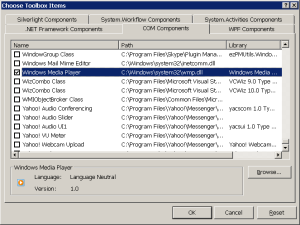
To add an ActiveX control to your .NET application, you can right-click the Toolbox, select Choose Toolbox Items, switch to the COM Components tab and select the controls that you wish to use in your application (see figure 3.)
Figure 3 – Adding WMP Control to the Toolbox
Another way is to use the aximp.exe tool provided by the .NET Framework (located in Program FilesMicrosoft SDKsWindowsv7.0Abin) to create the proxy assembly for the ActiveX component:
aximp.exe "C:WindowsSystem32wmp.dll"
Not surprisingly, you can create the proxy using the way for COM components discussed in the previous section, however, you won’t see any control that can be added to your form! That way creates control class wrappers for unmanaged ActiveX controls in that component.
Summary
So, unmanaged code interoperation comes in two forms: 1) PInvoke: interop with native libraries including the Windows API 2) COM-interop which includes all COM-related technologies like COM+, OLE, and ActiveX.
To PInvoke a method, you must declare it in your .NET code. The declaration must include 1) the library which the function resides in 2) the return type of the function 3) function arguments.
COM-interop also need function and type declaration and that’s usually done for you by the Visual Studio which creates a proxy (also called RCW and PIA) assembly that contains managed definitions of the unmanaged functions and types and adds it to your project.

























 Just Like [a] Magic